
Paisa X Go Login Guide 2026
Sign in with your mobile number and password, reset a forgotten password with OTP, and fix common login errors.
- Mobile + Password
- OTP Reset
- Android & PC

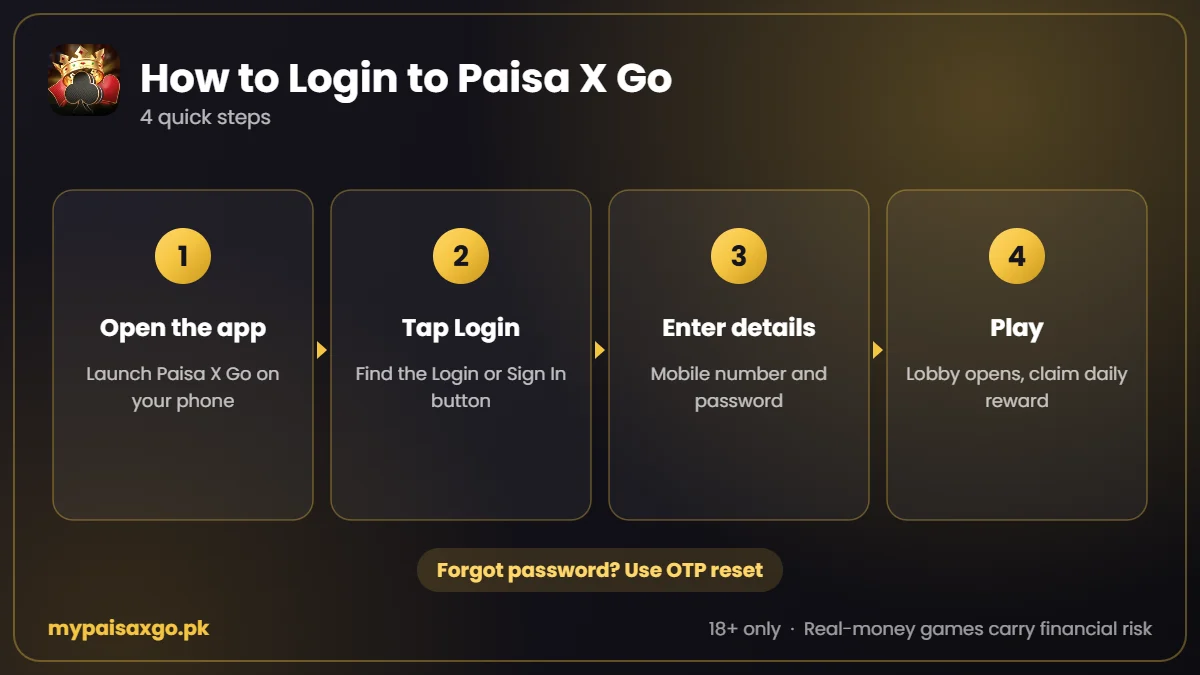
Paisa X Go login takes less than a minute: open the app, enter your registered mobile number and password, and tap Login. This guide explains every step, how to reset a forgotten password, and how to fix the most common Paisa X Go login problems.

Paisa X Go Login Requirements
Before you try to sign in, make sure you have these three things ready:
- The latest Paisa X Go app installed from our Paisa X Go APK download page.
- The mobile number you used when you created your Paisa X Go account.
- Your password, or access to the SIM so you can receive an OTP for a reset.
How to Login to Paisa X Go (Step by Step)
- Open the Paisa X Go app on your Android phone.
- Tap the Login or Sign In button on the first screen.
- Enter your registered Pakistani mobile number without spaces.
- Type your password carefully. Passwords are case-sensitive.
- Tap Login and wait a few seconds for the game lobby to load.
- Open the rewards or events area to claim your daily login reward.
Forgot Your Paisa X Go Password?
If you cannot remember your password, do not create a new account. A second account can block your bonuses. Reset the password instead:
- On the login screen, tap Forgot Password.
- Enter the mobile number linked to your account.
- Tap Send OTP and type the code from the SMS.
- Create a new password with at least 8 characters, mixing letters and numbers.
- Go back to the login screen and sign in with the new password.
How to Change Your Password After Login
For better security, change your password every few months. After your Paisa X Go login, open Profile or Account Settings, choose Change Password, enter the old one, then the new one twice. If the app also has a separate transaction password for withdrawals, keep it different from your login password.
Common Paisa X Go Login Problems and Fixes
| Problem | Why it happens | What to do |
|---|---|---|
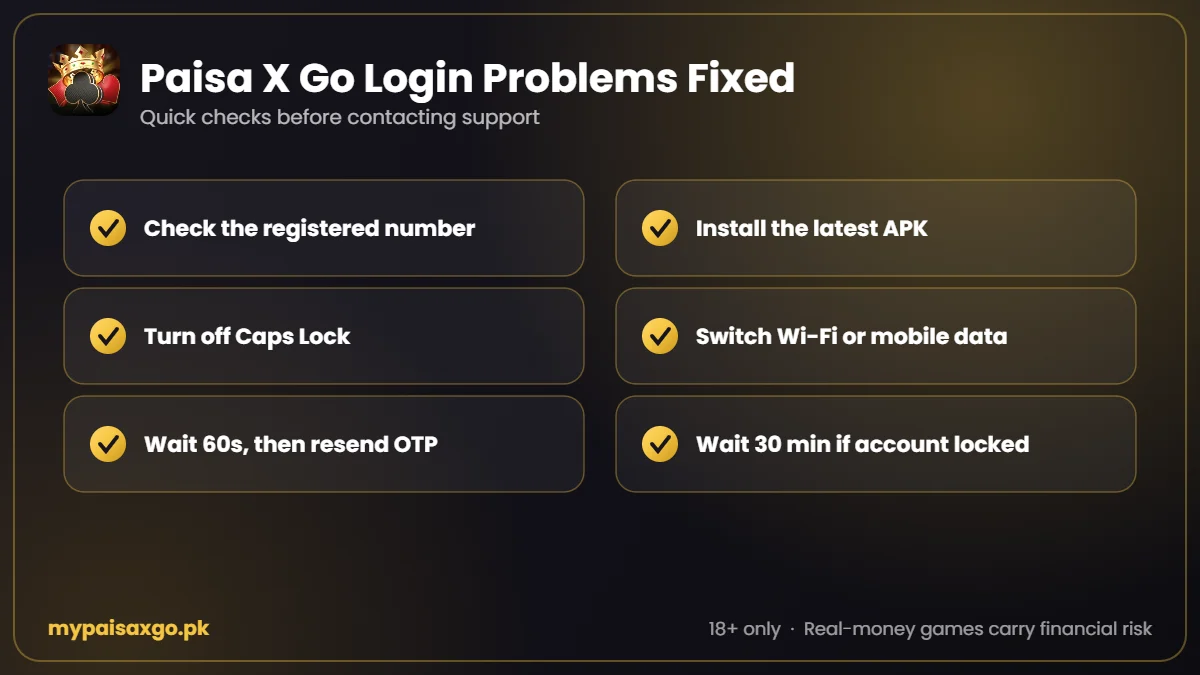
| “Wrong password” | Typing error or Caps Lock | Retype slowly or use Forgot Password |
| “Account does not exist” | Different number used at sign-up | Try your other SIM, or register a new account |
| OTP not received | Weak signal or DND on SIM | Wait 60 seconds, check signal, then resend once |
| App closes on login | Old app version | Install the latest APK from the download page |
| Network error | Slow or blocked internet | Switch between Wi-Fi and mobile data |
| Account locked | Too many wrong attempts | Wait 30 minutes or contact in-app support |
Paisa X Go Login on PC
You can also sign in on a computer through an Android emulator. Install the app as shown in our Paisa X Go for PC guide, then use the same mobile number and password. Your balance and game history are the same on every device because they are saved on your account.
Keep Your Paisa X Go Account Safe
- Use a password you do not use on Facebook, WhatsApp or your email.
- Never send your OTP to anyone. Real support staff never ask for it.
- Log out when you use a shared phone or PC.
- Only install updates from a trusted page, not from WhatsApp or Telegram links.
What to Do After Login
Once you are signed in, you can add money to Paisa X Go, play your favorite games, and withdraw your winnings to EasyPaisa or JazzCash. Visit the My Paisa X Go home page for the complete app guide.
FAQs
How do I log in to Paisa X Go?
Open the app, tap Login, enter your registered mobile number and password, then tap Login again.
Can I log in to Paisa X Go without a password?
No. You need your password. If you forgot it, use Forgot Password and verify your number with an OTP.
Why is my Paisa X Go OTP not coming?
Usually because of weak signal, a DND service on the SIM, or too many requests. Wait 60 seconds and resend once.
Can I use one Paisa X Go account on two phones?
Yes, you can sign in on another phone or PC with the same number and password. Log out on shared devices.